







Connect Lines Across Missing Values in ggplot2 Line Plot in R (Example)
In this tutorial you’ll learn how to avoid a gap in ggplot2 line plots with NA values in the R programming language.
The post is structured as follows:
Let’s dive into it.
Example Data, Packages & Default Plot
Let’s first construct some example data:
data <- data.frame(x = 1:10,           # Create example data frame
                   y = c(3, 1, NA, 5, 5, NA, NA, 4, 3, 6))
data                                   # Print example data frame
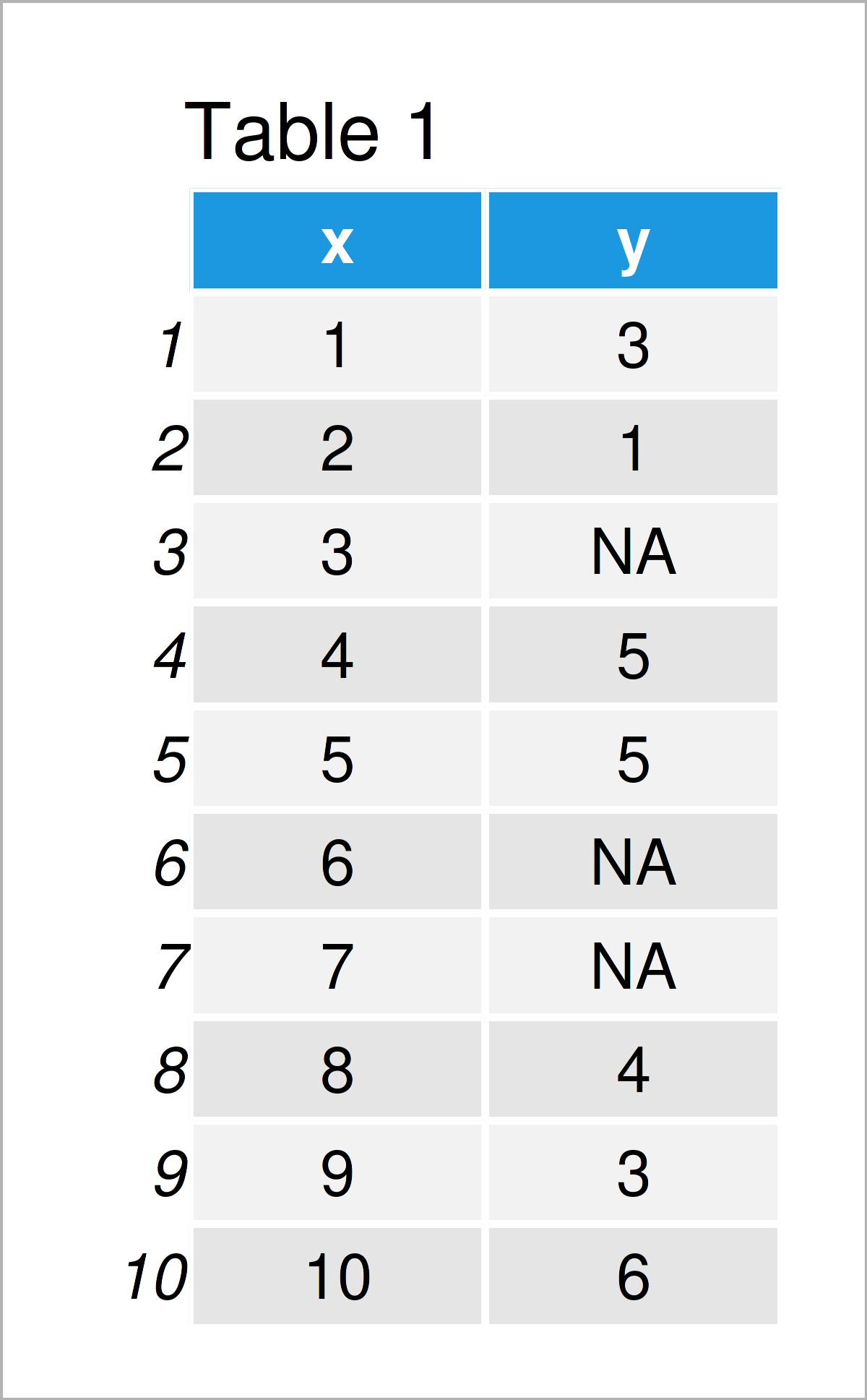
Table 1 visualizes the RStudio console output and shows that the example data is composed of ten rows and two columns.
To be able to use the functions of the ggplot2 package, we also have to install and load ggplot2:
install.packages("ggplot2")            # Install & load ggplot2 package
library("ggplot2")
As a next step, we can draw our data:
ggplot(data, aes(x, y)) +              # Draw ggplot2 plot with missings
  geom_line()
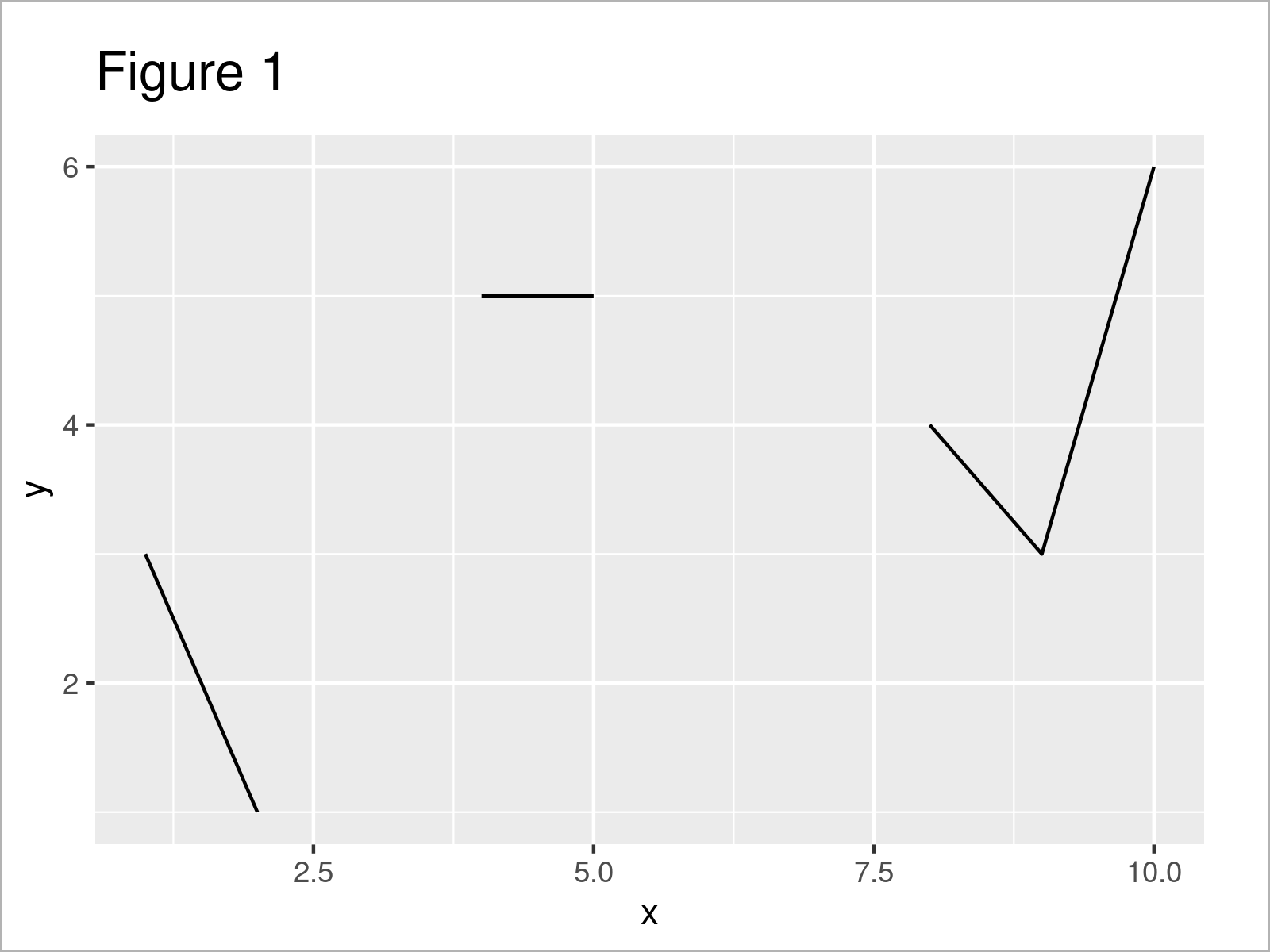
As shown in Figure 1, the previously shown R programming code has created a ggplot2 line plot. As you can see, there are several gaps between the lines. These gaps occur due to the NA values in our data frame.
Let’s connect our line!
Example: Avoid Gap for NA Values when Drawing a ggplot2 Plot
This example illustrates how to connect the lines in a ggplot2 line plot with missing data.
For this task, we first have to drop the NAs from our data frame:
data_comp <- data[!is.na(data$y), ]    # Remove missing values
data_comp                              # Print updated data frame
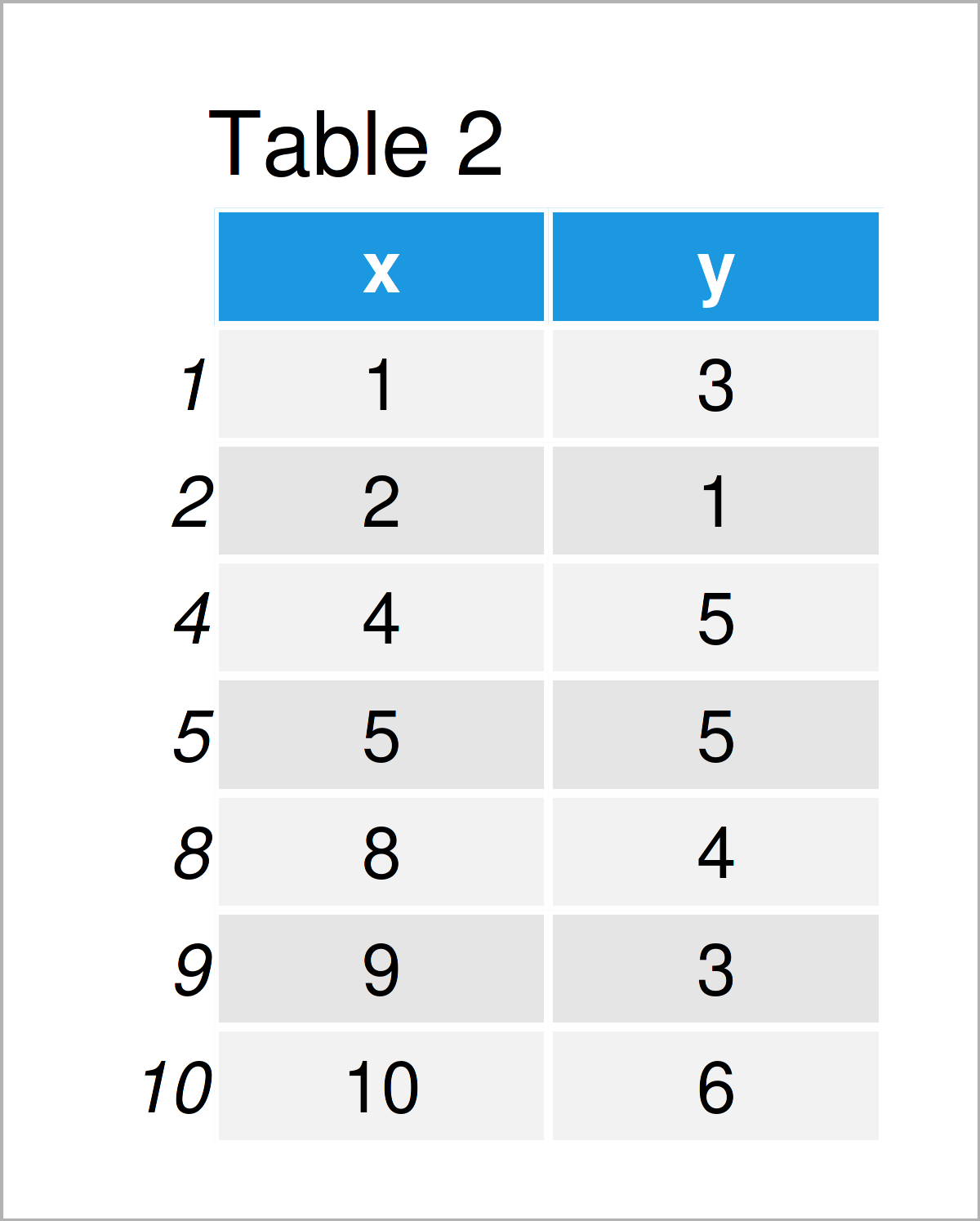
As shown in Table 2, we have created a new data frame containing no NA values by running the previous R programming syntax.
Next, we can draw a new ggplot2 line plot based on our complete data set:
ggplot(data_comp, aes(x, y)) +         # Draw ggplot2 plot without missings
  geom_line()
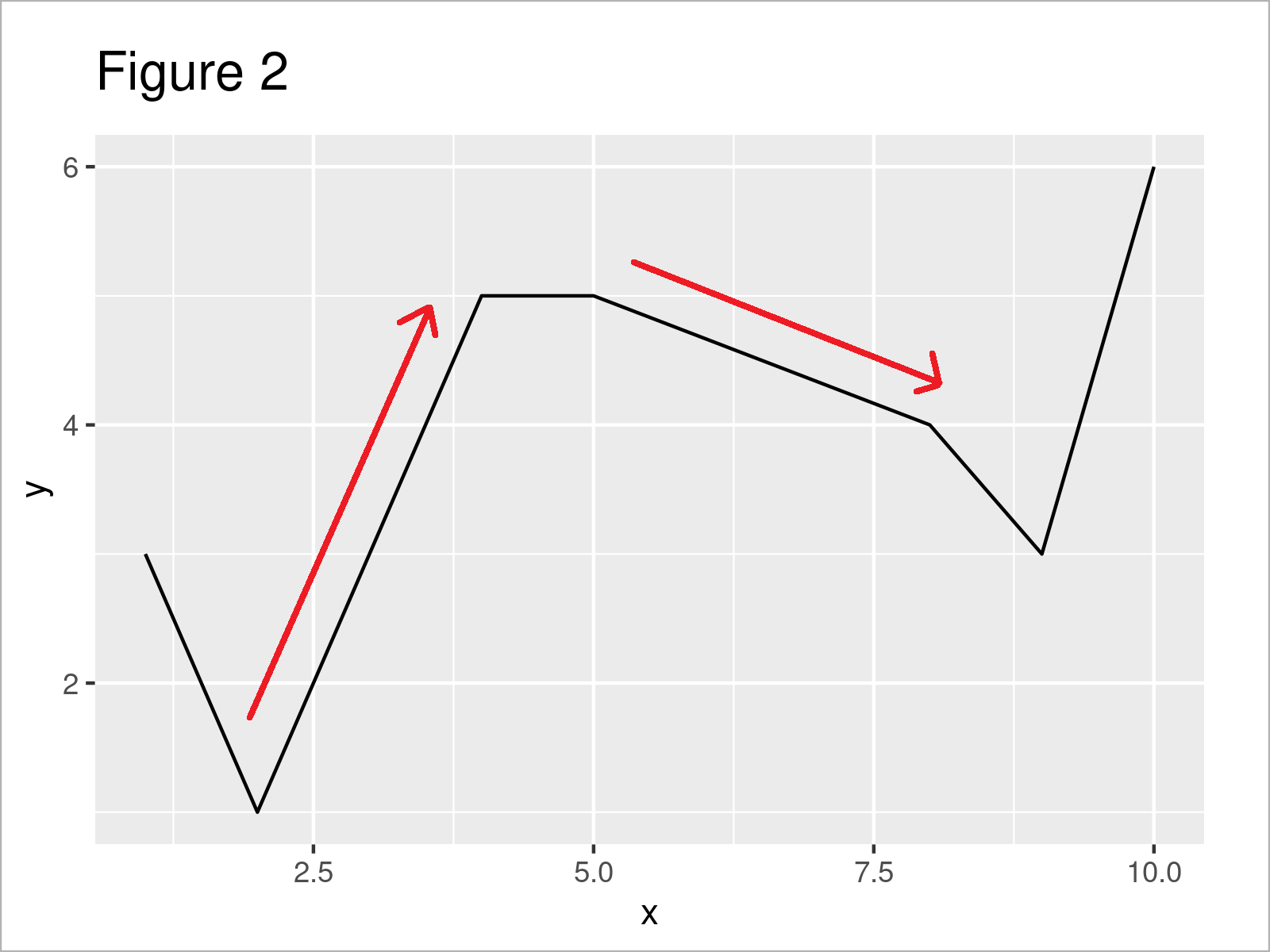
In Figure 2 you can see that we have created a new ggplot2 line plot where the gaps due to the missing values have been connected (indicated by the red arrows).
Video, Further Resources & Summary
If you need more explanations on the examples of this tutorial, you may want to have a look at the following video on the Statistics Globe YouTube channel. In the video, I’m explaining the R programming syntax of this article.
Besides the video, you could have a look at the related articles on my website:
- Add Regression Line to ggplot2 Plot
- Extract stat_smooth Regression Line Fit from ggplot2 Plot
- Cut Off Highest Values from ggplot2 Plot
- Align Text to Line in ggplot2 Plot
- Draw ggplot2 Plot with Lines and Points
- Add Different Line to Each Facet of ggplot2 Plot
- Graphics Gallery in R
- Introduction to R
In summary: At this point you should have learned how to connect the lines in a line plot with missing values in R. If you have any further questions, please let me know in the comments section. Furthermore, don’t forget to subscribe to my email newsletter to get updates on new articles.

I’m Joachim Schork. On this website, I provide statistics tutorials as well as code in Python and R programming.
Statistics Globe Newsletter
Get regular updates on the latest tutorials, offers & news at Statistics Globe. I hate spam & you may opt out anytime: Privacy Policy.


15 Comments. Leave new
Hi!! This is very helpful.
However, I am interested to plot those missing lines with dotted lines. And the remaining as solid lines. Can you please help in this regard.
Thank you.
Kind regards,
Hey,
Thank you for the kind comment, glad it’s helpful!
Regarding your question, take a look at the code below:
Regards,
Joachim
Hiya!!
Thank you very much. But it is not working on my data frame 🙁
As I have different variable also which has categories, such as gender, city, country etc. I am using facet but
Error in mortality_trend3 %>% mutate(Ethnicity = factor(Ethnicity, levels = c(“A”, :
could not find function “+<-"
How can I fix this.
Hiya!! It worked for me now. But the order of the X-axis is taken as alphabetically. How can I fix the order of the X-axis according to my own choice.? Please suggest. It would be a great help.
Hey,
Glad it works now! Regarding the order of your x-axis, please take a look at this Stack Overflow thread.
Regards,
Joachim
Thank you 🙂
You are very welcome! 🙂
Hi!! Sorry to bother you again.
I have a question related to the missing lines with dotted lines. Instead, of using the geom_line, I am interested in geom_smooth. Can you please suggest?
data <- data.frame(x = 1:10, y = c(3, 1, NA, 5, 5, NA, NA, 4, 3, 6))

data_comp <- data[!is.na(data$y), ]

ggplot() +
  geom_line(data = data_comp, aes(x, y), linetype = "dashed") +
  geom_line(data = data, aes(x, y))
Hey,
You can use the following code with
geom_smooth, but it doesn’t contain a dashed line.Regards,
Joachim
Thank you very much.
You are very welcome, Sadaf! Glad it’s useful.
Hi!! I have a problem related to bar plot.
mywork%>%
mutate(Fruits=factor(Fruits, levels=c(“Mango”, “Orange”, “Grapes”, “Blueberry”, “Raspberry”, “Pineapple”, “Apple”, “Guava”)))%>%
ggplot(aes(x=Fruits, y=Calories,fill=Gender)) +
geom_bar(stat=”identity”, width=0.5,position = position_dodge())+
scale_fill_grey()+
scale_color_grey()+
guides(x=guide_axis(angle=90))+
facet_wrap(~factor(Health_status, levels=c(“ABC”,
“PQR”,
“JKL”,
“XYZ”)),
labeller =label_wrap_gen(width = 25, multi_line = TRUE))+
labs(fill = “Gender”, x=”fruits”, y=”(%)”)+
theme_bw(base_size=16)+
scale_y_continuous(breaks = c(0,20,40,60,80,100)) +
theme(legend.position = “bottom”)
The gender categories are: men, women and Others.
I want to highlight “pineapple” and Orange. with different color scale. Can you please help?
Hey Doyu,
Thank you for the kind comment. Could you please illustrate the structure of your data set
mywork?Regards,
Joachim
my_work <- data.frame(Fruits = c(“Mango”, “Orange”, “Grapes”, “Blueberry”, “Raspberry”, “Pineapple”, “Apple”, “Guava”), Gender= c("Men", "Women", "Women", "Women", "Women", "Men", "Men", "Women"), Calories= c(3, 1, 4, 5, 5, 3, 9, 4)).
Thanks for the additional details. That seems to be a bit tricky, though. One solution might be to use
scale_fill_manual()to modify the color of each subgroup manually. This messes up the legend, though, so you yould have to find a way to modify the legend manually. Here’s a simplified example:I hope that helps!
Joachim