






Print Table in R (2 Examples)
This article explains how to show a table in the R programming language.
Table of contents:
If you want to learn more about these topics, keep reading:
Creation of Example Data
We use the following data as basement for this R tutorial:
x <- c(1:5, 1:3, 2)        # Create example vector
x                          # Print example vector
# [1] 1 2 3 4 5 1 2 3 2
The previous output of the RStudio console shows that our example data is a numeric vector object.
Example 1: Print Table to RStudio Console Using table() Function
Example 1 demonstrates how to display a frequency table of our example data in the RStudio console.
First, we can create a frequency table of our data using the table() function:
my_tab <- table(x) # Apply table function
After running the previous R code, a new data object called my_tab has been created.
In the next step, we can simply execute the name of this table object to print the table to the RStudio console:
my_tab                     # Print table to RStudio console
# x
# 1 2 3 4 5
# 2 3 2 1 1
The previous output illustrates the RStudio console output that gets returned after executing the previous R syntax.
Example 2: Show Table in New RStudio Window Using View() Function
In this example, I’ll explain how to show a table in a new RStudio window tab using the View function.
To achieve this, we have to apply the View function to the table object my_tab that we have constructed in Example 1:
View(my_tab) # Apply View function
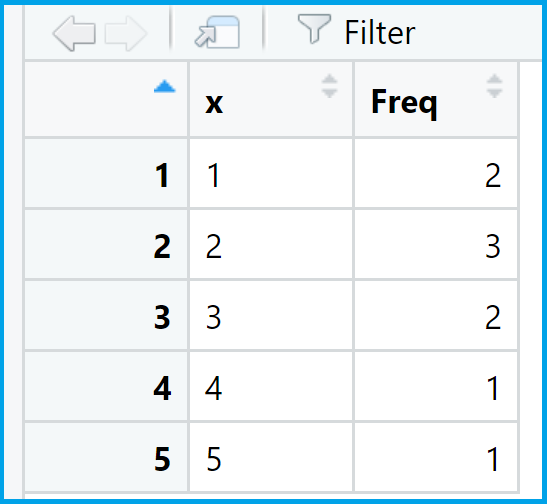
Table 1 shows a screenshot of the new window that has been opened after running the previous R code.
Video & Further Resources
In case you need further info on the R syntax of this article, you may have a look at the following video tutorial on my YouTube channel. I’m demonstrating the R programming code of this tutorial in the video.
In addition, you may want to read the other RStudio tutorials on my website:
Summary: In this R programming post you have learned how to print and view a frequency table. In case you have further questions, don’t hesitate to let me know in the comments section below.

I’m Joachim Schork. On this website, I provide statistics tutorials as well as code in Python and R programming.
Statistics Globe Newsletter
Get regular updates on the latest tutorials, offers & news at Statistics Globe. I hate spam & you may opt out anytime: Privacy Policy.