







R and ONLYOFFICE Tutorial: A Free Microsoft Office Alternative
When working with data, you almost automatically also work with CSV and XLSX files. For example, you export results from R or Python, clean or review them in a spreadsheet, and then continue your analysis.
In many teams, this usually means using Microsoft Office. But is Microsoft Office really the only practical option for this kind of data workflow?
In practice, Microsoft Office can be quite expensive, especially for students, researchers, and small teams. A powerful and free alternative is ONLYOFFICE.

I’m glad I had the opportunity to collaborate with and be sponsored by ONLYOFFICE in creating this tutorial, where I introduce the main features, walk through a practical workflow, and show how it can help streamline everyday data-related work.
The tutorial will cover the following topics:
Let’s dive into ONLYOFFICE and see what it can do!
What is ONLYOFFICE?
ONLYOFFICE provides open-source document editors and commercial products for working with text documents, spreadsheets, and presentations. It offers web-based editors that run directly in the browser as well as desktop applications for local use.
In addition to creating and editing files, ONLYOFFICE supports real-time collaboration, so multiple users can work on the same document at the same time.
A core component of ONLYOFFICE is the spreadsheet editor, which supports common formats such as CSV and XLSX. This makes it suitable for reviewing tables, adjusting values, and preparing data files that are later used in analytical tools such as R or Python.
ONLYOFFICE also includes integrated AI assistants that can be used directly inside documents and presentations. These assistants support tasks such as generating or rewriting text, summarizing content, translating documents, and improving wording.
Depending on your setup, ONLYOFFICE can be used as a cloud service, as desktop software on your local machine, or as a self-hosted solution on your own infrastructure.
In short, ONLYOFFICE is a general-purpose office and collaboration platform that covers document editing, spreadsheet work, presentation creation, and AI-assisted content support in one environment.
Advantages of ONLYOFFICE
ONLYOFFICE offers several practical advantages for people who regularly work with data files such as CSV and XLSX as part of their daily workflow.
Here’s an overview:
- No license costs for everyday editing: Documents, spreadsheets, and presentations can be created and edited without a paid subscription. This is especially useful for students, researchers, and small teams.
- Reliable handling of CSV and XLSX files: Data files exported from analytical tools can be opened, inspected, and edited without additional conversion steps.
- Smooth data handoff between analysis and spreadsheets: It fits naturally into workflows where data is exported from R or Python, reviewed or corrected in a spreadsheet, and then imported back into the analysis.
- Collaboration directly on data-related files: Real-time co-editing, comments, tracked changes, and version history make it easy to review tables and results together with colleagues.
- AI support for reporting and communication: The integrated AI assistants are particularly useful when turning results into short explanations, reports, or slide content alongside the actual data work.
- Controlled sharing and access rights: Files can be shared with different permission levels, such as view, comment, review, or edit, which is helpful when collecting feedback on intermediate results.
- Self-hosted option for sensitive projects: For organizations with data protection or compliance requirements, ONLYOFFICE can be deployed on internal infrastructure.
Overall, ONLYOFFICE is a practical and cost-effective solution for handling CSV and XLSX files in data analysis workflows, while also supporting collaboration and AI-assisted reporting in a single platform.
Example Workflow Using R Programming and ONLYOFFICE
To make the workflow with ONLYOFFICE more concrete, let’s walk through a simple real-world example step by step.
If you want to follow along, you can download ONLYOFFICE for free from the official website.
In this example, we will create a small dataset in R, export it as a CSV file, open and edit the file in ONLYOFFICE using its AI features, and then import the updated version back into R for further analysis.
We start by creating a simple example dataset in R.
# Create example data
df <- data.frame(fruit = c("Apple", "Banana", "Orange",
                           "Strawberry", "Grapes", "Mango",
                           "Pineapple", "Blueberry", "Pear", "Kiwi"),
                 calories_per_100g = c(52, 89, 47, 32, 69,
                                       60, 50, 57, 57, 61))

# Print example data
df
#         fruit calories_per_100g
# 1       Apple                52
# 2      Banana                89
# 3      Orange                47
# 4  Strawberry                32
# 5      Grapes                69
# 6       Mango                60
# 7   Pineapple                50
# 8   Blueberry                57
# 9        Pear                57
# 10       Kiwi                61
This code creates a small data frame called df with two columns:
fruitcontains the names of ten different fruits.calories_per_100gcontains the corresponding calorie values per 100 grams.
Next, we define the folder in which the CSV file will be saved and export the data frame df to a file called onlyoffice_workflow_example.csv. We also disable row names so that no extra index column is added to the file.
# Specify file path
my_path <- "C:/Users/Joachim Schork/Desktop/ONLYOFFICE Example/"

# Export data to CSV
write.csv(df,
          file = paste0(my_path, "onlyoffice_workflow_example.csv"),
          row.names = FALSE)
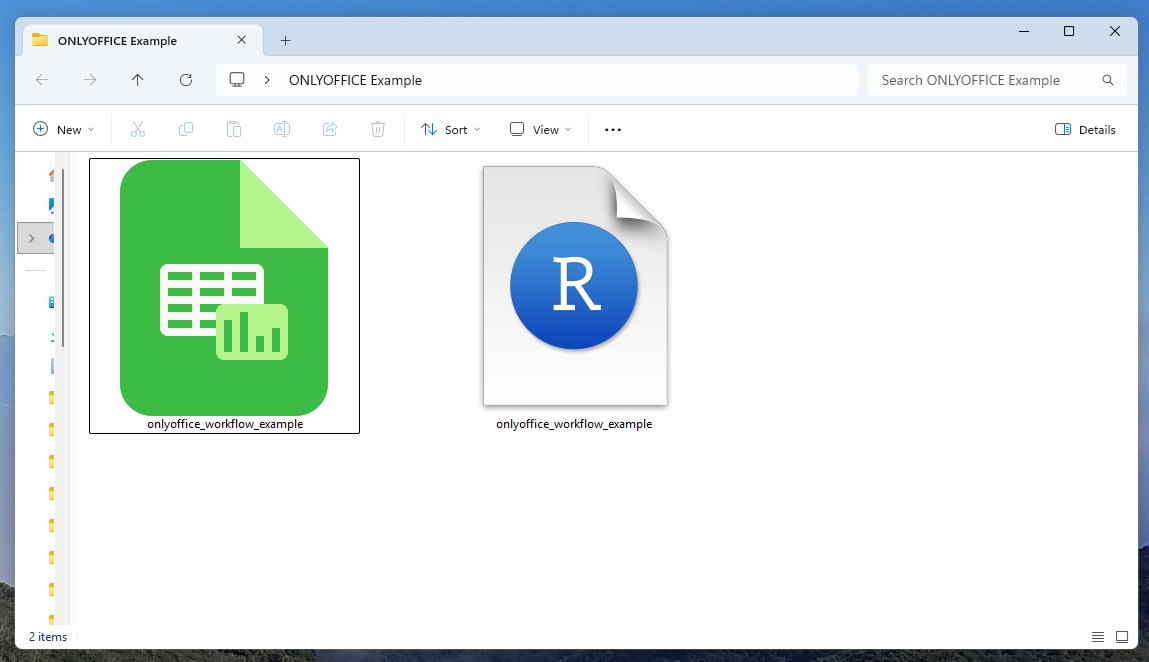
The screenshot shows the working folder after exporting the data from R: on the left is the CSV file onlyoffice_workflow_example.csv, and on the right is the corresponding R script file used to create and export the data.
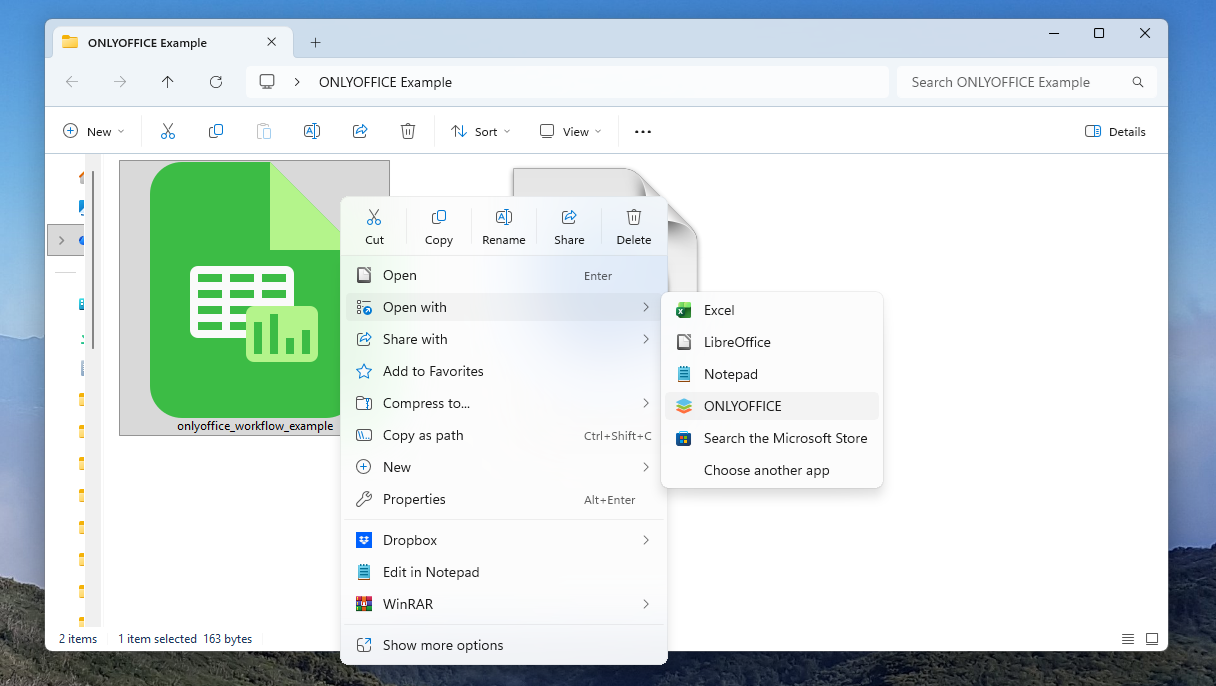
The next screenshot shows how the exported CSV file is opened with ONLYOFFICE on Windows. The file onlyoffice_workflow_example.csv is right-clicked in the folder and opened via Open with and ONLYOFFICE. This allows you to edit the CSV file in the ONLYOFFICE spreadsheet editor instead of opening it in Excel.
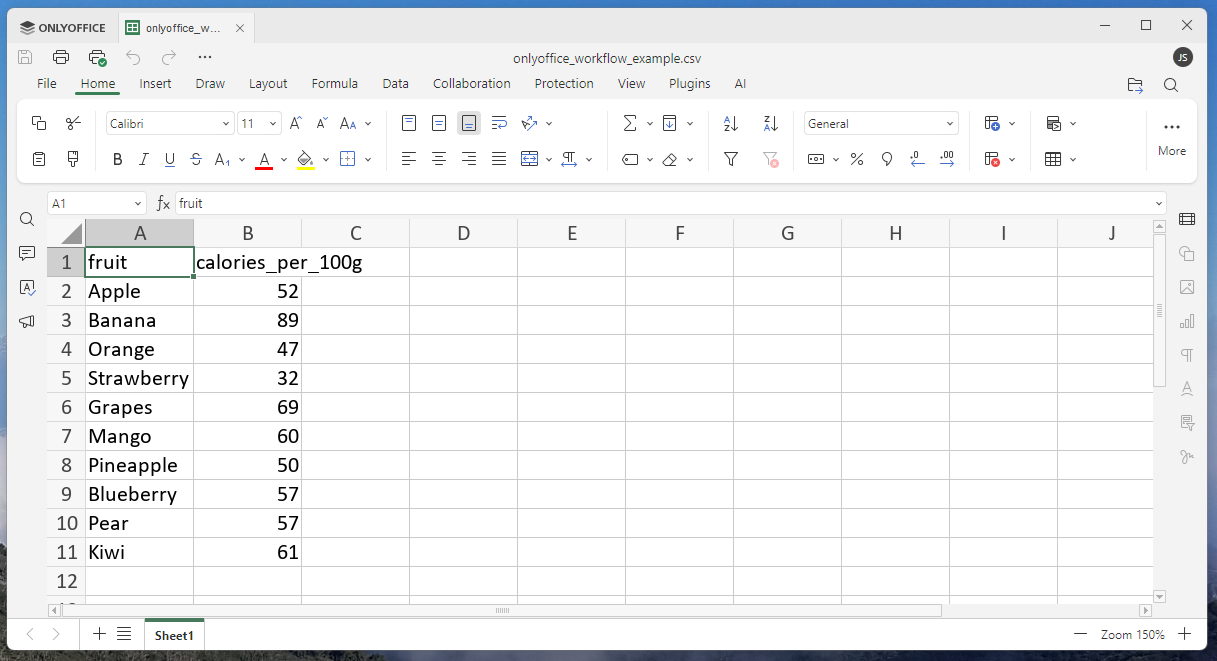
After opening the file in ONLYOFFICE, the exported CSV data appears as a normal spreadsheet and can be edited directly inside the editor.
Next, we will modify this sheet using the AI features of ONLYOFFICE. To use these features, you first need to connect an AI assistant to ONLYOFFICE. Detailed setup instructions are available here.
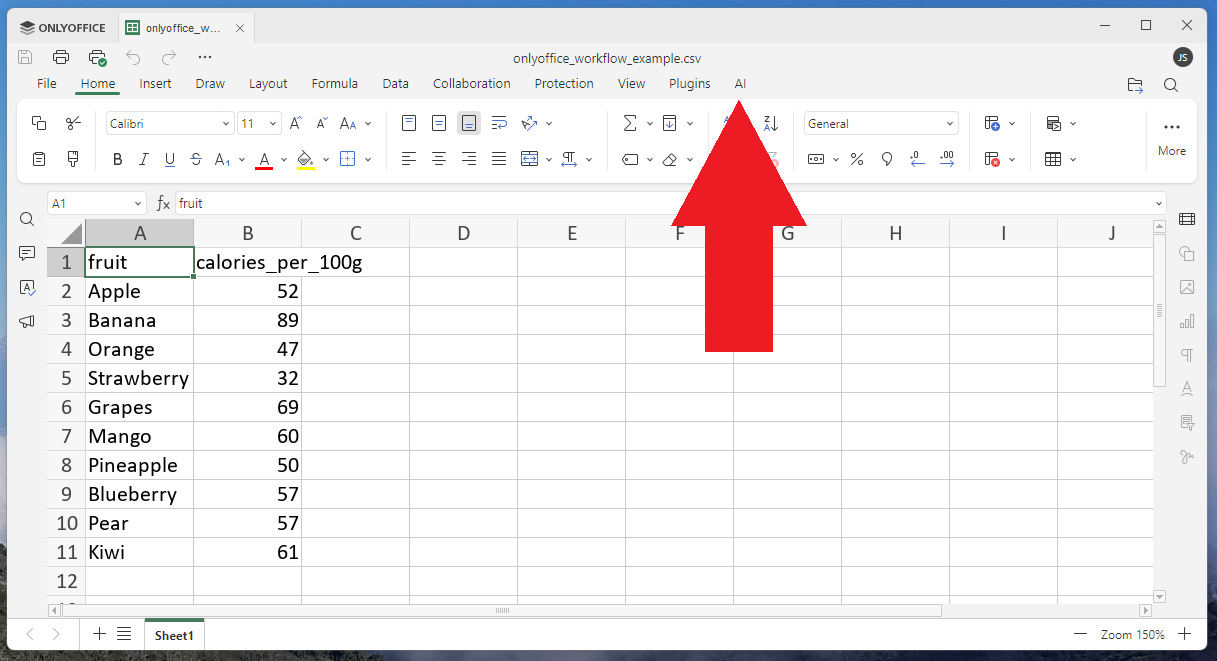
To access the built-in AI features, switch to the AI tab in the toolbar at the top of the editor. This is the central entry point for tools such as translation and summarization.
First, we translate the English fruit names into German. From the AI menu, select the Translation tool. It allows you to translate the selected cells directly inside the spreadsheet. Make sure to highlight the cells you want to translate before running the tool.
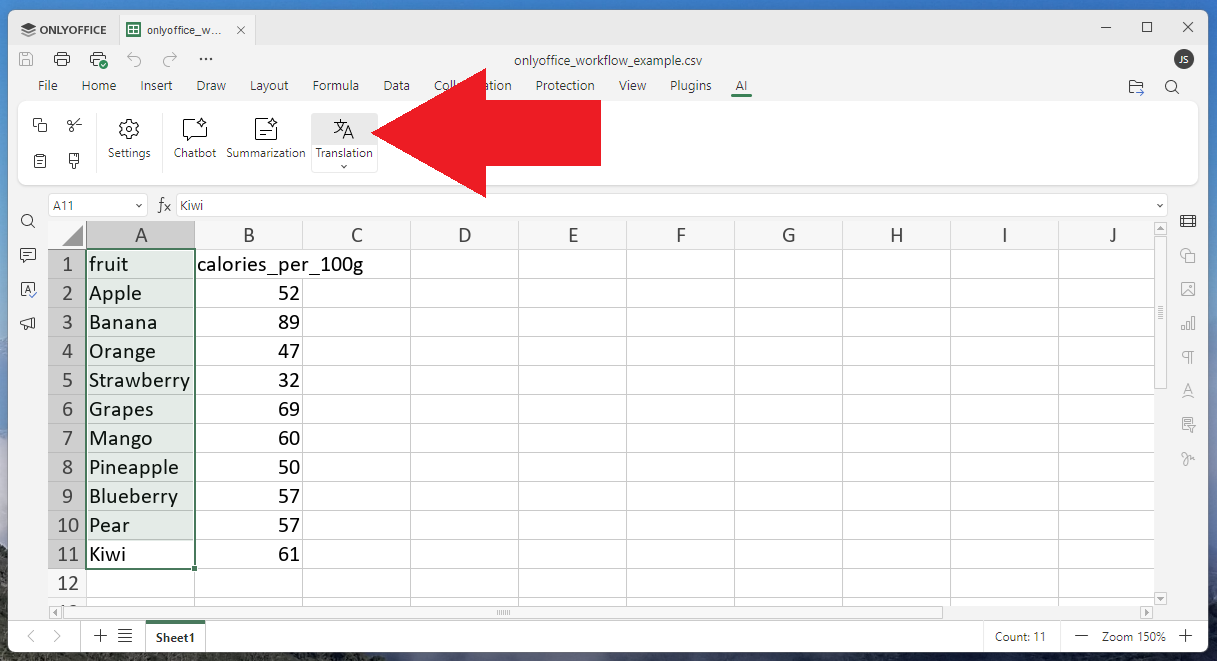
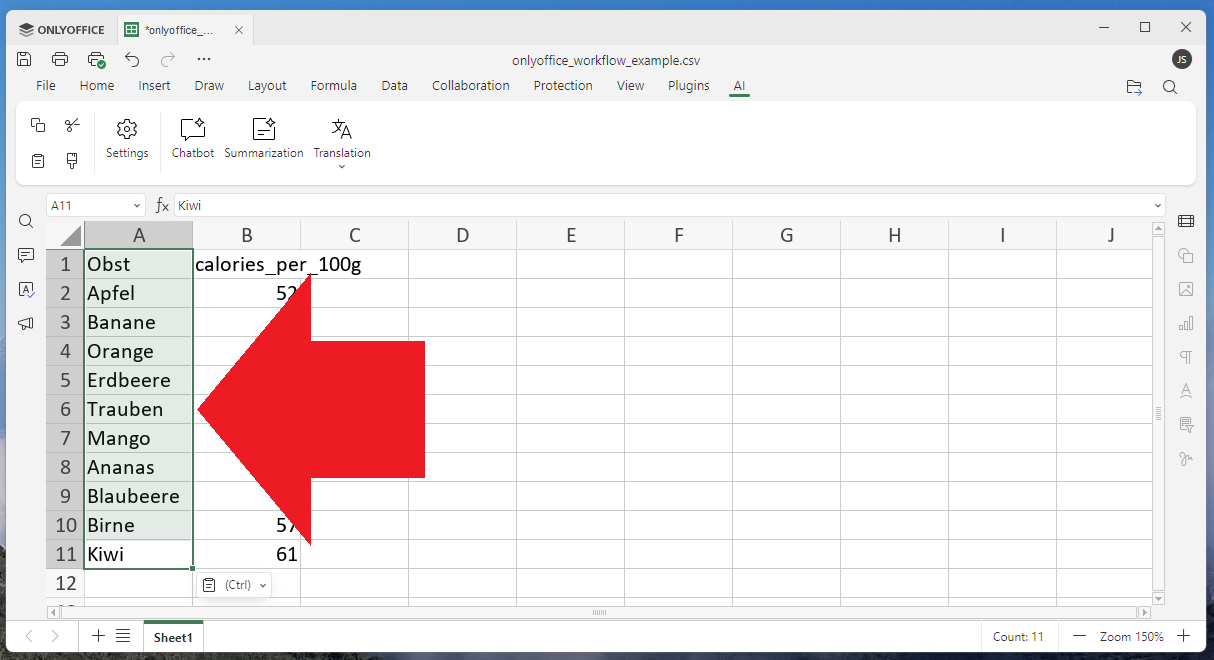
After running the translation, the fruit names and the column header are translated into German directly in the table.
In addition to translation, ONLYOFFICE also provides a built-in summarization feature. It can be accessed from the same AI menu.
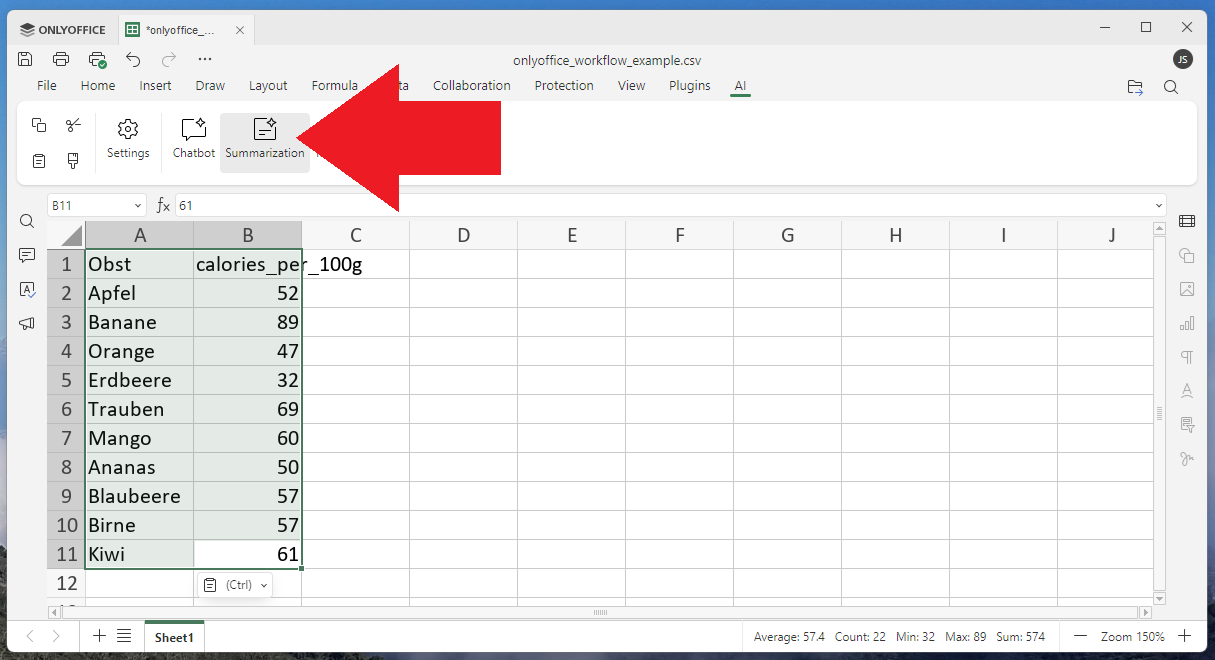
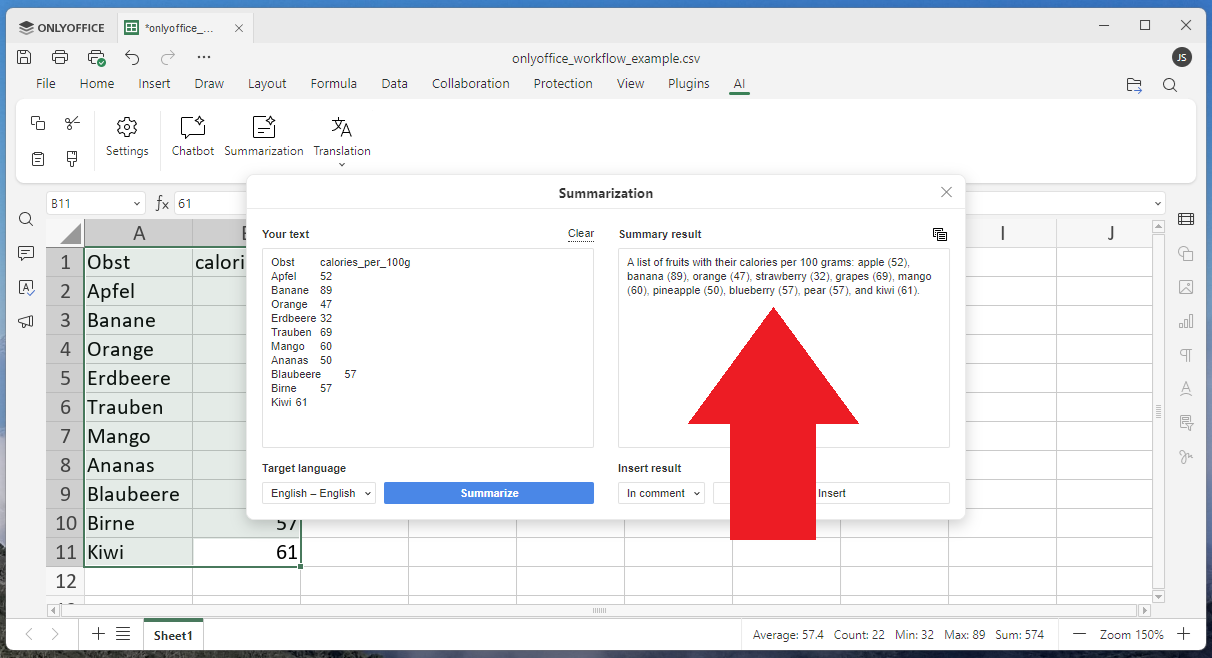
The summarization dialog shows the selected table content that will be passed to the AI assistant. The summary can be generated with a single click.
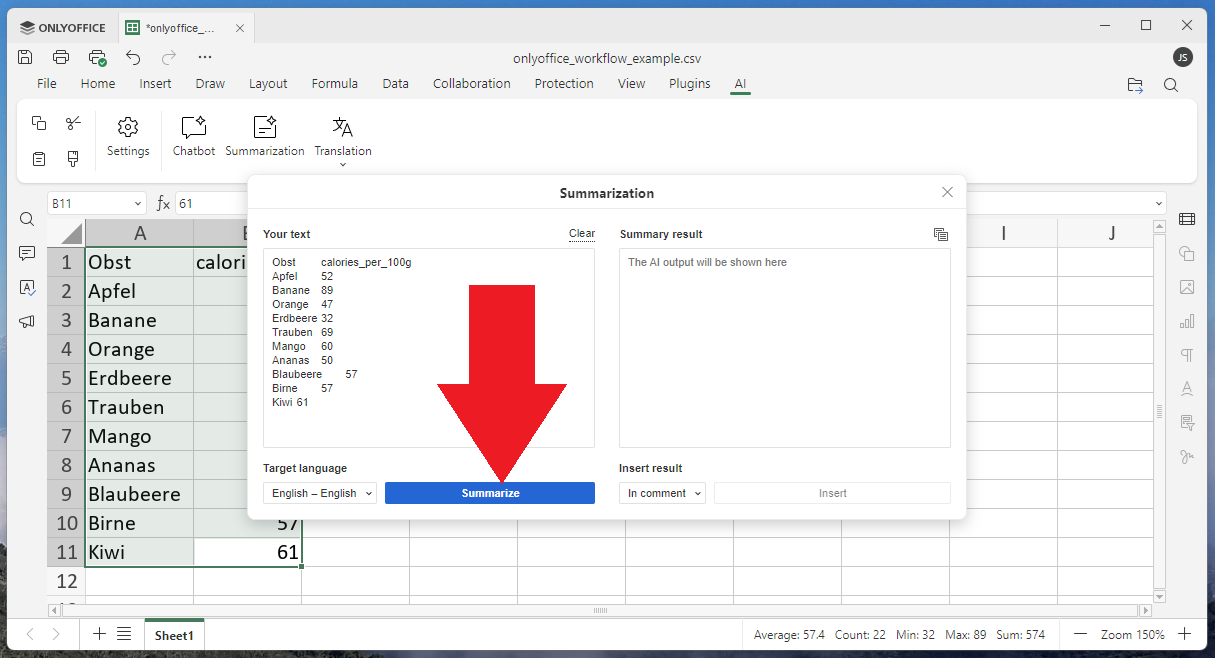
Finally, the generated textual summary of the selected spreadsheet data is shown on the right side of the dialog. In this simple example, it only provides a short description of the small fruit table. However, when you apply this feature to larger or more complex datasets, it can be very useful for quickly generating short explanations or report-ready summaries.
So far, so good. Now let’s assume we want to import the modified data back into R to continue working there. First, save the edited file as onlyoffice_workflow_example_translated.csv, and then use the following code to read the updated file into R and inspect the result.
# Import updated data
df_updated <- read.csv(paste0(my_path, "onlyoffice_workflow_example_translated.csv"))
df_updated
#         Obst calories_per_100g
# 1      Apfel                52
# 2     Banane                89
# 3     Orange                47
# 4   Erdbeere                32
# 5    Trauben                69
# 6      Mango                60
# 7     Ananas                50
# 8  Blaubeere                57
# 9      Birne                57
# 10      Kiwi                61
In this short example, you saw how a typical workflow can move seamlessly between R and ONLYOFFICE: data is created in R, exported as a CSV file, edited in a spreadsheet using built-in AI features such as translation and summarization, and then imported back into R for further analysis. This shows how ONLYOFFICE can be used as a practical intermediate step for reviewing, enriching, and documenting data without breaking an existing R-based workflow.
ONLYOFFICE Video Tutorial
Would you like to see another practical example of ONLYOFFICE in action? I’ve created a YouTube tutorial that demonstrates a complete reporting workflow combining ONLYOFFICE with R and Quarto, from building a reusable PPTX presentation template to automatically generating slides from R and then finalizing the presentation in ONLYOFFICE.
Watch the full video here:
Here is the Quarto code used in Example 3 of the video:
---
title: "Quarto to ONLYOFFICE"
subtitle: "An Efficient Way to Create Beamer Presentations"
format:
  pptx:
    reference-doc: my_template.pptx
---

## Slide 1: Plot of the Data

```{r}
library(ggplot2)

ggplot(cars, aes(x = speed, y = dist)) +
  geom_point(size = 2) +
  geom_smooth(method = "lm") +
  labs(title = "cars dataset",
    x = "Speed",
    y = "Stopping distance") +
  theme_minimal(base_size = 16)
```

## Slide 2: Quick Summary

```{r}
library(dplyr)
library(tidyr)
library(gt)

cars |>
  pivot_longer(cols = everything(),
               names_to = "Variable",
               values_to = "Value") |>
  group_by(Variable) |>
  summarise(
    Min = min(Value),
    Mean = mean(Value),
    Median = median(Value),
    Max = max(Value),
    .groups = "drop"
  ) |>
  gt() |>
  fmt_number(columns = c(Min, Mean, Median, Max), decimals = 1) |>
  tab_header(title = "Summary of cars")
```
How to Access ONLYOFFICE
ONLYOFFICE offers both free plans and paid plans. The free version is a great way to get started and explore the core editing and collaboration features, and it is fully sufficient to follow the workflows shown in this tutorial. As you can see, it already offers plenty of functionality!
Paid plans build on this by offering additional collaboration and management features, professional support, and options for larger teams and organizations. They are especially useful if you plan to use ONLYOFFICE in a collaborative or organizational setting where administration, scalability, and support become more important.

I would like to thank ONLYOFFICE for sponsoring this post and giving me the opportunity to demonstrate their features here. It was a pleasure to explore the platform in depth and share my experience. ONLYOFFICE can be a very practical companion to programming workflows, especially when it comes to reviewing data, preparing reports, and refining presentations as part of an end-to-end analysis process.
New Release: ONLYOFFICE Docs 9.3
ONLYOFFICE recently released ONLYOFFICE Docs 9.3, a major update that introduces 30+ new features, performance improvements, and more than 500 bug fixes. You can find the full overview of the update in the official announcement.
The release includes several improvements that are particularly useful for data, reporting, and collaboration workflows:
- Enhanced PDF tools: more flexible options for signing PDF forms (typed signatures, drawing, and improved image signatures), along with new editing capabilities such as link management, version history for PDFs, redaction tools, and support for macros in PDFs.
- Improved document review: a new multipage view makes it easier to inspect layouts and review documents more efficiently, together with improvements to the commenting system.
- More powerful spreadsheets: the spreadsheet editor now includes a Solver tool, better performance for large files, regular expression functions (REGEXTEST, REGEXREPLACE, REGEXEXTRACT), and support for dynamic arrays.
- Presentation improvements: GIF playback in slideshow mode allows more dynamic presentation slides.
Conclusion
In this tutorial, you learned how ONLYOFFICE can be integrated into a practical R-based workflow for working with CSV and spreadsheet files.
You saw how to create data in R, export it to a CSV file, edit and enrich the data in ONLYOFFICE using built-in AI features such as translation and summarization, and then import the updated file back into R for further analysis.
The article also showed how ONLYOFFICE can support collaboration, reporting, and presentation tasks, making it a useful and cost-effective alternative to Microsoft Office in everyday data and reporting workflows.
2 Comments. Leave new
Hi Joachim, thanks a lot for your message. At work I use Ubuntu 24 as my operating system, and I’ve been using ONLYOFFICE as my desktop suite for quite a while now. I think it’s a great alternative to MS Office and even to LibreOffice. Best,
Hi Gustavo,
Thanks for your message and for sharing your experience. It’s great to hear that you’re already using ONLYOFFICE on Ubuntu and that it works well for your workflow. I agree, it can be a very nice alternative to MS Office and LibreOffice.
Regards,
Joachim