







Module 4 – RStudio Interface Explained [Course Preview]
Module 4 introduces you to the RStudio Integrated Development Environment (IDE), a powerful interface for R programming.
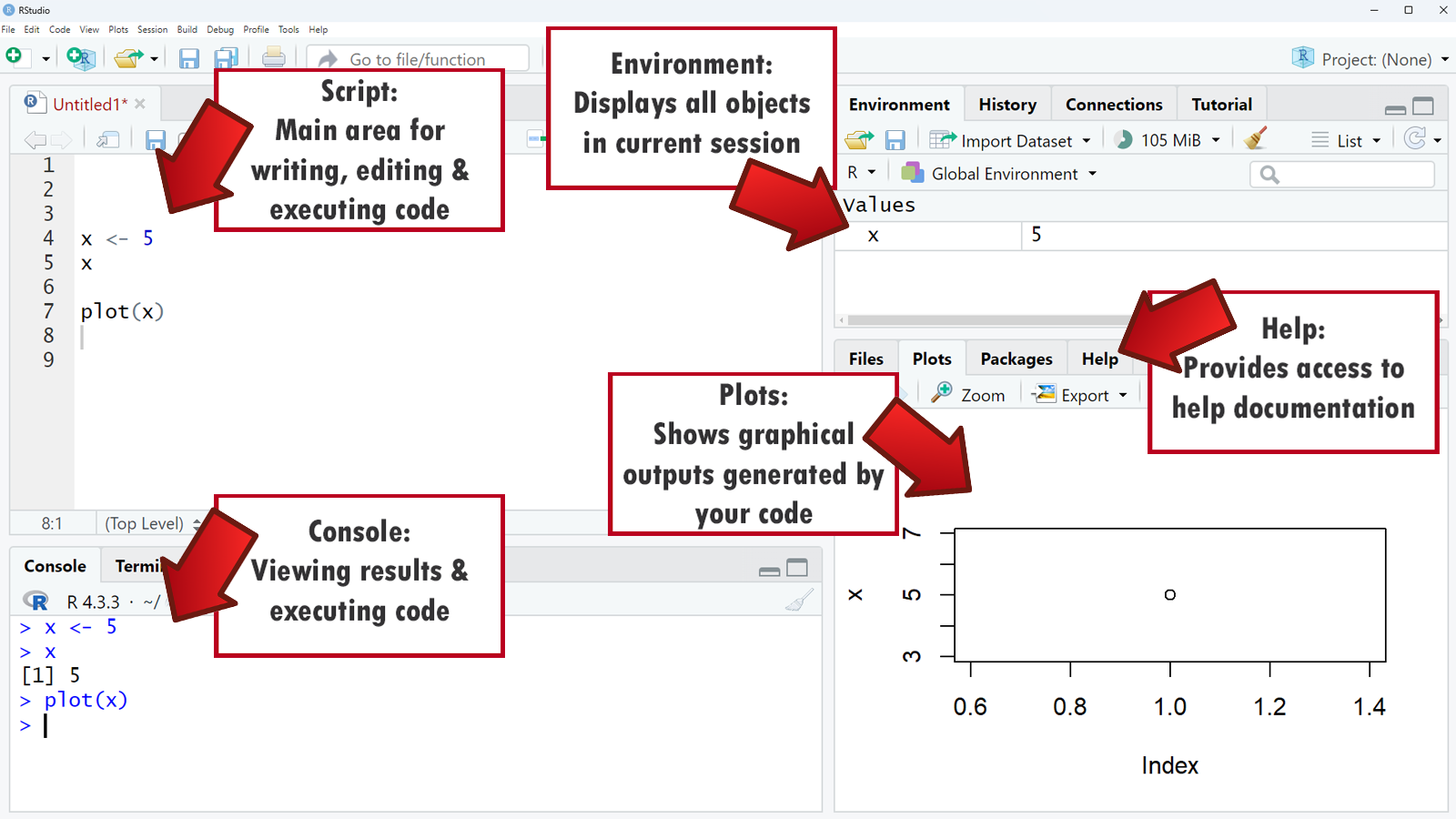
We’ll explore the different panes in RStudio, such as the Script, Console, Environment, Plots, and Help panes, and learn how to navigate and utilize them effectively.
This module ensures you are comfortable with the RStudio environment, enhancing your productivity and workflow in R.
Video Lecture
R Code & Further Explanations
The video lecture for this course contained only a short R code snippet, which you can find below.
x <- 5
x

plot(x)
However, the main content of this lecture focuses on explaining the different panes in RStudio. To provide further clarity, I have created the graph below, which offers explanations for the five panes introduced in the lecture.
Exercises
Here are the exercises for this module. Please note that for each multiple-choice question, only one answer is correct.
- Where can you view the results of your code execution in RStudio?
- A) Environment pane
- B) Console pane
- C) Script pane
- D) Help pane
- In which pane can you see a list of all the variables and data frames you have created during your R session?
- A) Script pane
- B) Console pane
- C) Environment pane
- D) Help pane
- Which pane is typically used for writing and editing R scripts before running them?
- A) Console pane
- B) Environment pane
- C) Script pane
- D) Plots pane
- Which pane allows you to directly execute R commands and view their immediate results?
- A) Script pane
- B) Console pane
- C) Environment pane
- D) Plots pane
- How do you run all the code in an R script from the Script pane?
- A) By pressing Ctrl + Enter.
- B) By pressing Ctrl + Shift + S.
- C) By pressing Ctrl + A followed by Ctrl + Enter.
- D) By pressing Ctrl + Shift + H.
Exercise Solutions
Please find our solutions to the exercises of this module below.
Exercise 1) Where can you view the results of your code execution in RStudio?
The correct answer is B). The Console pane is used for viewing the results of your code execution in RStudio. It displays the output and any immediate feedback from the code that you run.
Exercise 2) In which pane can you see a list of all the variables and data frames you have created during your R session?
The correct answer is C). The Environment pane displays all the variables and data frames you have created during your R session. It helps you keep track of the objects in your current workspace.
Exercise 3) Which pane is typically used for writing and editing R scripts before running them?
The correct answer is C). The Script pane is used for writing and editing R scripts before running them. It provides a space where you can write, modify, and save your code.
Exercise 4) Which pane allows you to directly execute R commands and view their immediate results?
The correct answer is B). The Console pane allows you to directly execute R commands and view their immediate results. It is the interactive part of RStudio where you can type commands and see output instantly.
Exercise 5) How do you run all the code in an R script from the Script pane?
The correct answer is C). To run all the code in an R script from the Script pane, you press Ctrl + A to select all the code, followed by Ctrl + Enter to execute it. This allows you to run the entire script at once.
Further Resources
.
You can access the course overview page, timetable, and table of contents by clicking here.